Embedding a Power BI Report in your Dashboard
When having analytics data or Power BI-based audit data reports available, you may want to embed these directly in the iGrafx Process Design application to share with your end users. This can be achieved securely by publishing your Power BI report and embedding it in an iFrame.
Embedding reports and publishing them may require you to have a Microsoft Account and/or a Power BI Pro subscription.
Step-by-step guide
To publish and embed the report, follow these steps:
-
Finalize your report in Power BI and save it
-
Click
File→Publish(you may have to log into your Microsoft Account beforehand)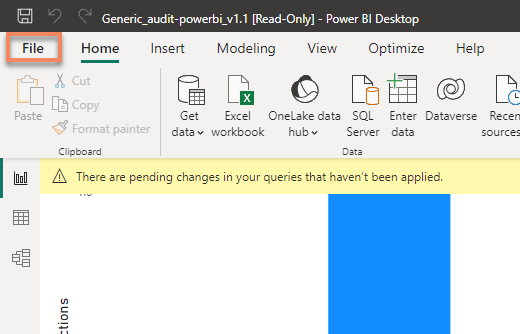
-
Click
Publishand thenPublish to Power BI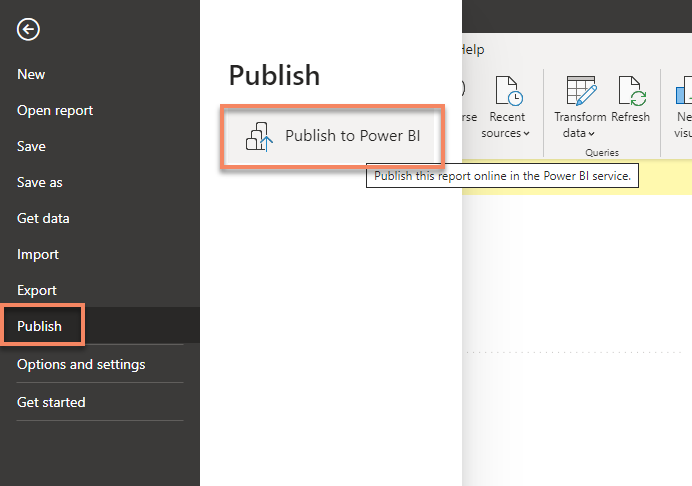
-
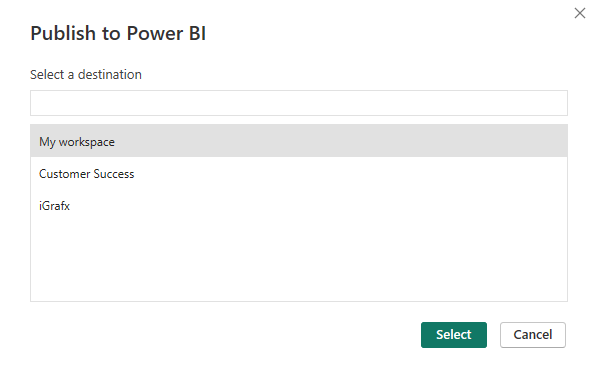
Select your designated workspace
-
Wait for the publishing to complete, and then click the
Open report name in Power BIlink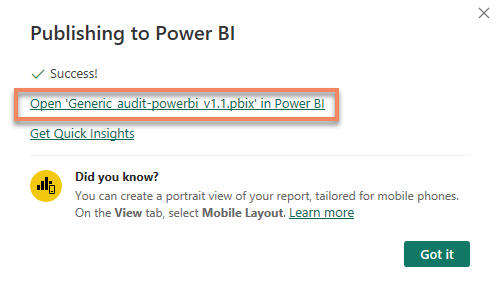
-
Click
File→Embed Report→Website or portal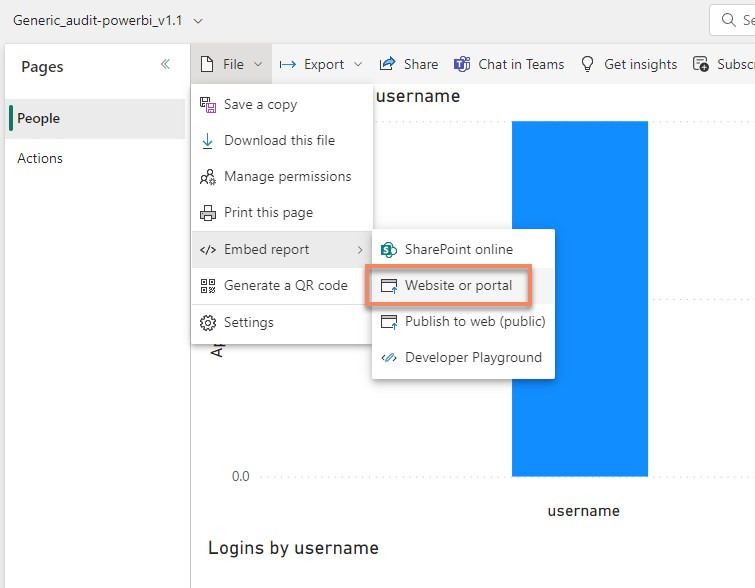
-
Copy the URL for the report from the following dialog
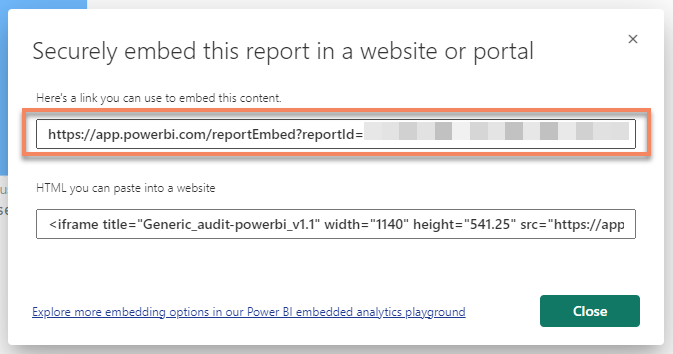
-
Create an iFrame Gadget in your Dashboard in the iGrafx Process Design application and provide the URL from the previous step
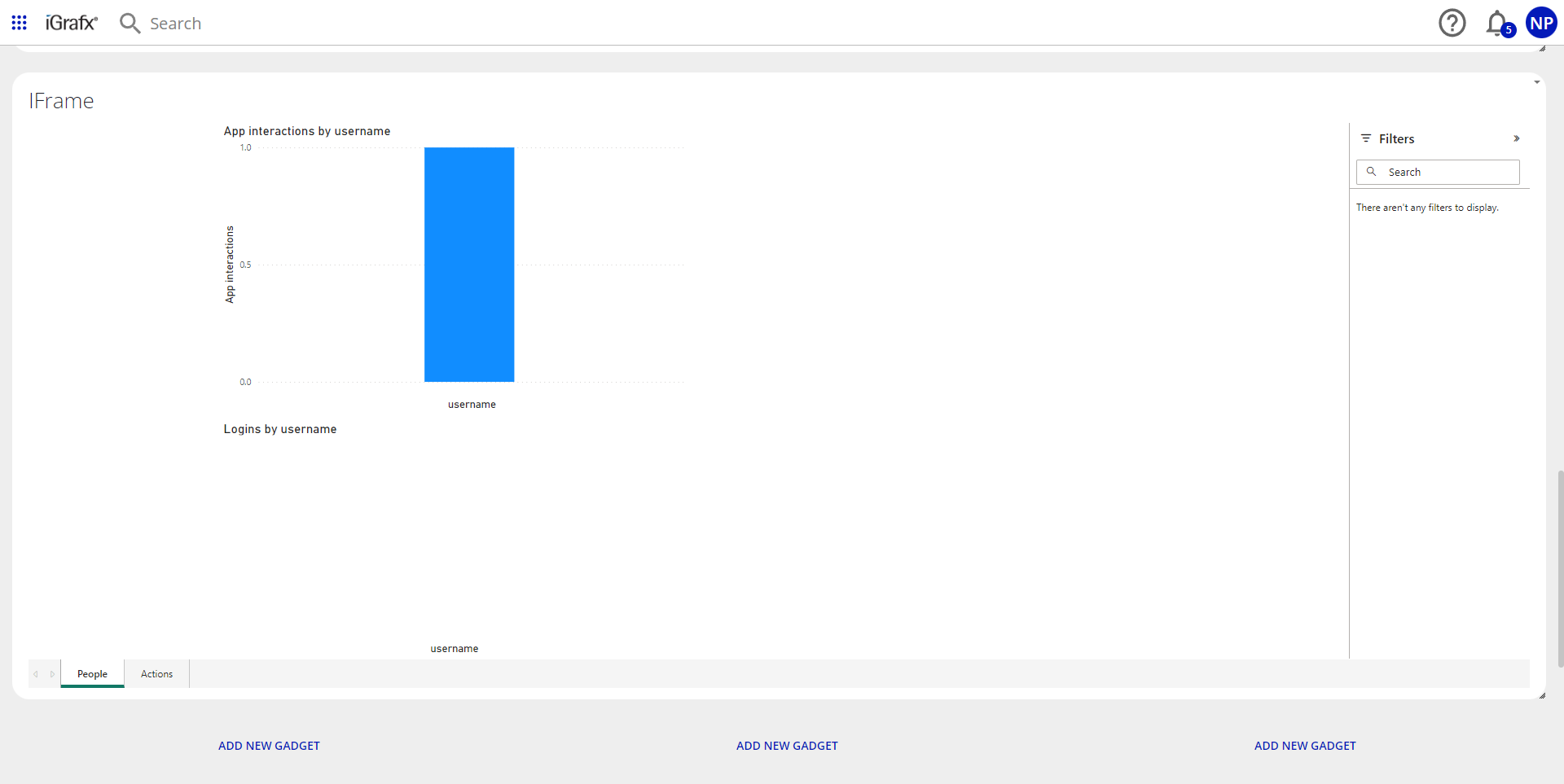
-
You (and other users) may be required to sign in before viewing the report in the iFrame. This is expected and ensures no person can access the report that does not also have permissions to it in your organization.

Details
| Related issues |
|---|