How to download Excel list report data without having to run the report in the browser first
Due to limitations of data display within browsers, large reports may not be able to be run within the platform. The Download Data button however does not become available until the report has run. This workaround allows downloading the data without running the report itself.
-
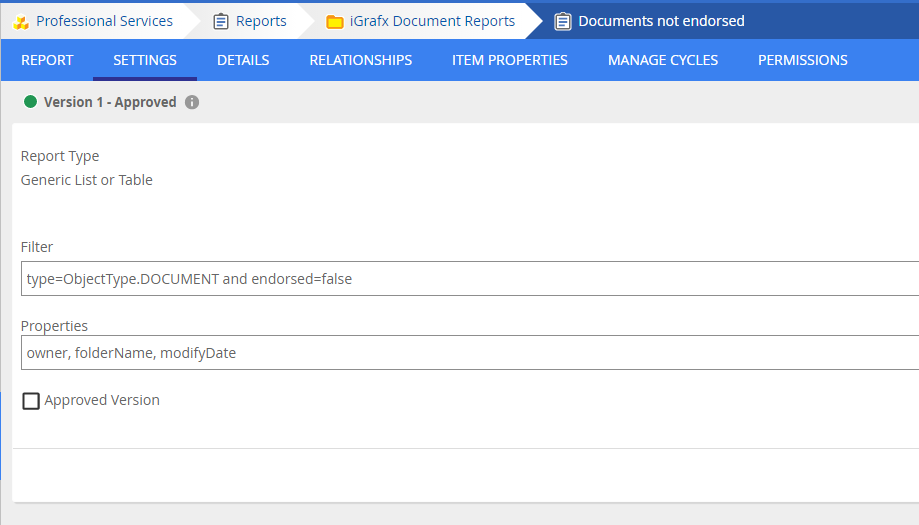
Design your report in the iGrafx Platform
-
Build the following JSON structure based on your
Filter,PropertiesandApproved Versioncheckbox{"filters":"type=ObjectType.DOCUMENT and endorsed=false","properties":"owner, folderName, modifyDate","version":"LATEST"}Make sure to escape double-quotes in the filter with a backslash (i.e.
"becomes\") and to not use any line breaks in the resulting JSON. If you check theApproved Versioncheckbox in your report definition, change theversionJSON property fromLATESTtoAPPROVED -
Go to https://www.urlencoder.org/ (or use your browser console and the
encodeURIcommand) and encode your string in one single line. The result will look something like this, with all special characters replaced with%??%7B%22filters%22%3A%22type%3DObjectType.DOCUMENT%20and%20endorsed%3Dfalse%22%2C%22properties%22%3A%22owner%2C%20folderName%2C%20modifyDate%22%2C%22version%22%3A%22LATEST%22%7D -
Log in to the platform in which you want to run download the report results
-
Enter the following URL into your browser address bar. Make sure to replace
%YOUR_PLATFORM_URL%with your platform address,%REPOSITORY%with your repository shortname and the filter parameter%REPORT_CONFIG%with the string from step 3http://%YOUR_PLATFORM_URL%/IceQ/%REPOSITORY%/downloadList?config=%REPORT_CONFIG% -
Press
Enterand wait for your XLSX file to download