Resolving Permission Denied error when using iGrafx Data IO (IDIO)
Problem
When trying to import or process data using iGrafx Data IO (IDIO), you may experience permission problems and see the following dialog:
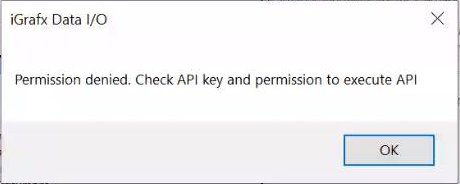
Solution
There are various issues that can cause this type of error. The below list contains some of the more common issues that can result in this dialog
- The user you are attempting to access the platform with has no API key configured. This can be verified by opening their
Administration→User Managementand finding the respective user. ClickEdit. If there is aGenerate API Keybutton, the user does not currently have an API key. Click the button to generate and use it.- The API key you are using is incorrect. There is no way to confirm the validity of an API key after it has been generated. A solution is to generate a new key via
Administration→User Managementand finding the respective user, then clickEdit. ClickDelete API Keyand then generate a new API key ℹ️ This will make the previous key unusable and you will have to make sure the key is not used in any other API integrations, or update the key there as well with the newly created one- The REST API is not enabled or the respective authentication type is not allowed. This can be verified by going to
Administration→Support→REST API. On the page, ensure bothEnable APIandAllow access via API Keyare both checked- The user does not have the
Access REST APIserver level permission. To check this, go toAdministration→User Managementand find the respective user. Then clickEditunderServer Roleson the right side, check which server roles the user receives and make sure at least one of them has theAccess REST APIpermission allowed. This can be checked underAdministration→Security Roles→Server Roles
Details
| Related issues |
|---|