19.23.0 Datacenter Highlights
Dashboard - Custom Object List Gadget with Parent Object Filter
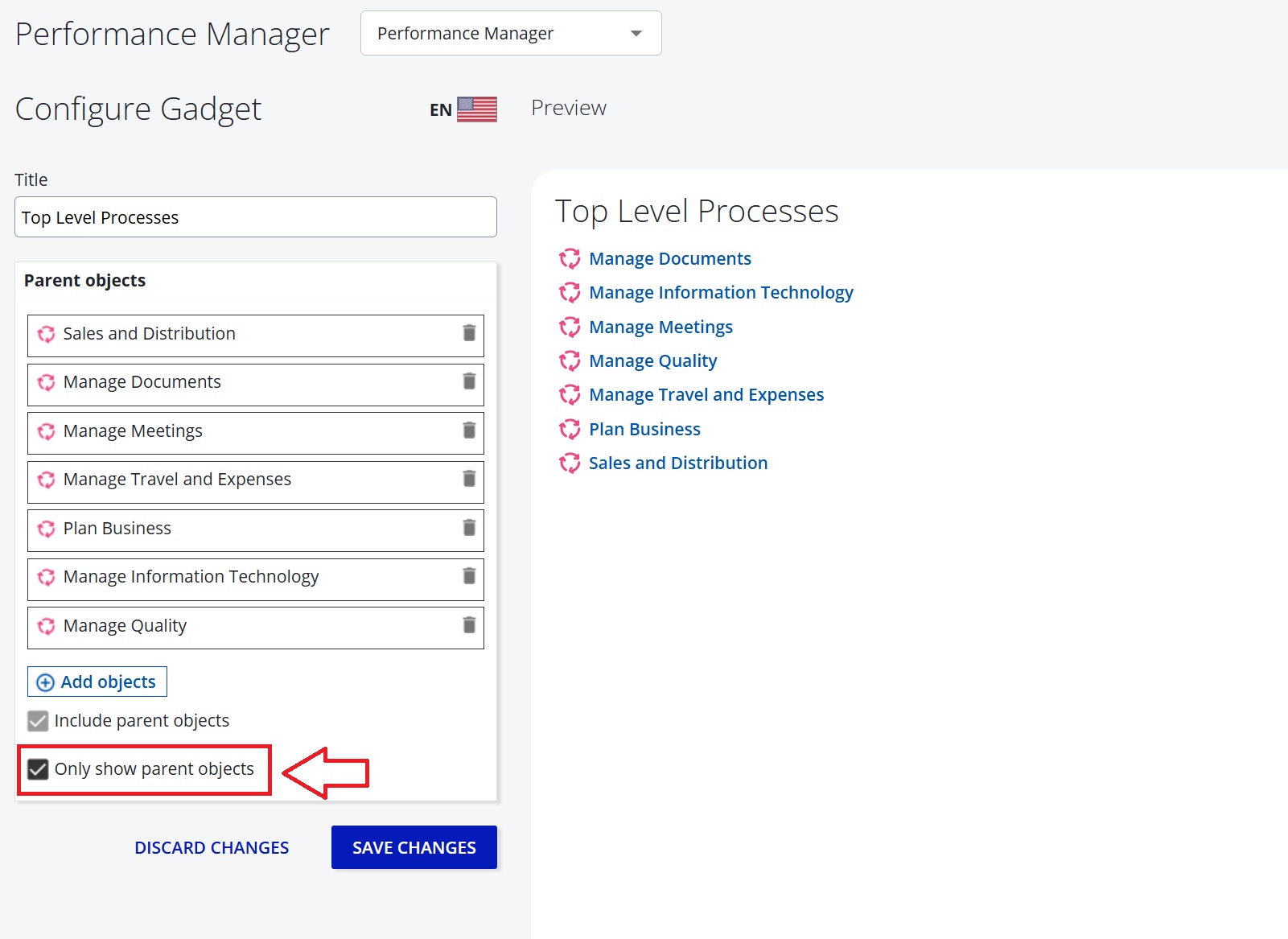
We have added an “Only show parent objects” option to the Custom Object List gadget. When enabled, the gadget displays only explicitly selected parent objects (no descendants included).
Change in behavior: Reporting - Download Filtered Report
Report downloads now respect the active UI filters. When filters are applied, the exported Excel file contains only the matching rows. Without filters, the full report is exported as before.
Note: The Excel export may include more rows than displayed in the UI if the report hit the item limit and the user did not click Show All Items. The export always returns all matching objects regardless of the UI pagination limit.
Reporting - Improved Sorting for Text Columns
Text columns now use natural sorting when selected for sort order, ensuring values like 1.0, 2.0, 11.0 appear in the expected sequence. This improvement does not yet apply to the List Report dashboard gadget.
Reporting - Download Sorted Report
Downloaded report data now matches the exact order shown in the web view, including any user-applied sorting. This ensures consistency between on-screen reports and exported data.
Object Picker Behavior
We have consolidated the Object Picker in several areas, including Proposals and ICS Risks, and added browse capabilities.
Improved Performance for Large Diagrams
Dragging shapes in large diagrams is now significantly smoother with a new performance mode. Hold Shift while dragging to move objects and the system will automatically switch to this mode if performance slows down. Additionally, drag behavior is now more precise, keeping the object anchored exactly where you grab it.
You can also hold the Shift key to move shapes out of a pool without triggering container resizing, making it easier to pull objects out—especially in large diagrams.
SAML Configuration - Move from JVM Arguments to UI
SAML settings previously defined via JVM arguments are now managed in the application UI (Administration → User Management → SAML). Existing values are automatically migrated during upgrade and stored in the database, which takes precedence going forward.
No action is required to retain current settings, but future changes must be made in the UI. Legacy JVM arguments can be removed after upgrade, as they are no longer used.
We recommend immediately verifying if your Single Sign On flow still functions as expected after upgrading. If SAML SSO is not working properly, restart the Process Design application server once.
Early Access
⚠️ Early Access features require your system administrator to enable them for your entire organization. How to enable Early Access features
Narrative - Shape List Scope for Subprocesses
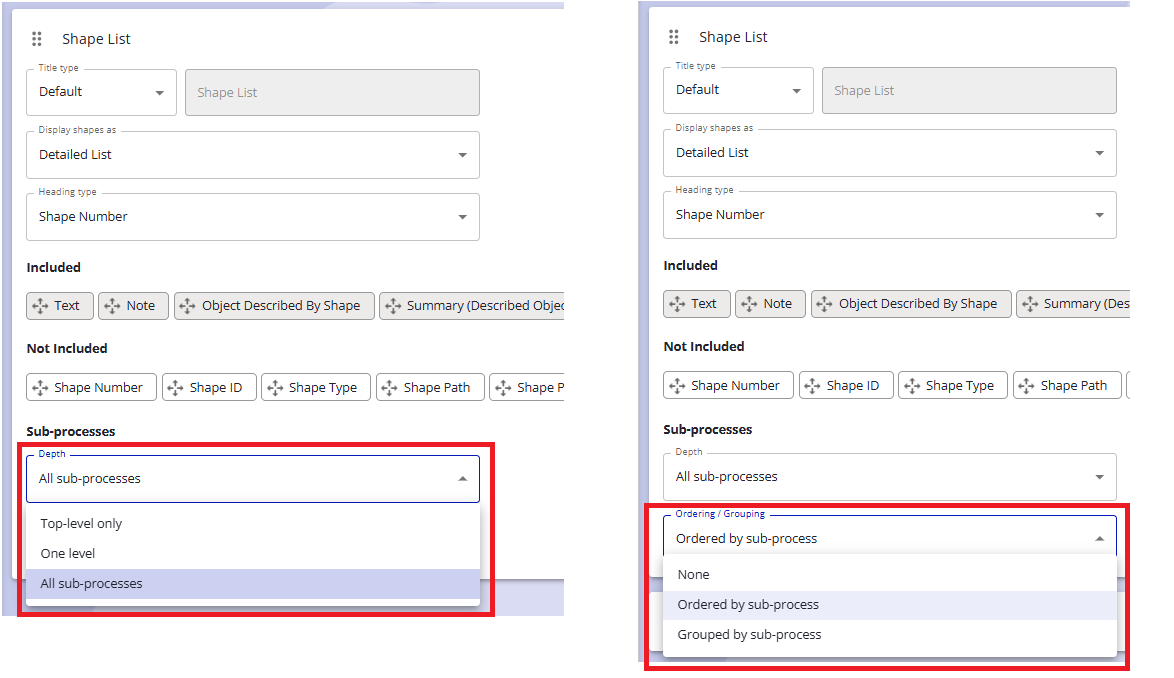
Diagram Narratives now support configurable shape list scope and display, allowing control over sub-process depth (top-level only, one level deep, or all; default remains all) and switching between a combined (grouped) or per-subprocess view (default). Existing sections retain their previous sorting behavior for consistency. This feature requires enabling the Early Access feature: New Reporting UI.
Narrative - Optional Section Headers
Narrative authors can now hide section headers when they don’t add value, allowing content (e.g., Diagram sections) to stand on its own for a cleaner presentation.
This feature requires enabling the Early Access feature: New Reporting UI
Read more about: Narrative Reports
Notice - New Narrative UI is now New Reporting UI
We have renamed the flag to New Reporting UI to better reflect the broader set of changes included. Improvements have been made across the general reporting experience, with a particular focus on Narratives.