18.2.5 Datacenter Release Highlights
Reporting - Diagram Comments
Reports now have a new Filter/Property that can be used to return information on diagram comments.
Learn More
View details on diagram comments in Reports:
Learn more about IQL properties |
Diagram Tools - Format Painter
Copy line styles and shape colors to apply them to other shapes with the Format Painter.
Learn More
Set a line style and shape fill and use them for other diagram elements.
|
Diagram Compare - Zoom Controls
Zoom controls are now available in the Overlay when comparing diagram versions.
Learn More
|
Narrative Reports - Shape ID Toggle
Shape IDs can now be displayed in place of Shape Numbers in Narrative Reports.
Learn More
Internal Shape IDs can be used to identify your shapes in the Narrative report.
Note: Shape ID and Shape Number do not have to be identical. |
Early Access
How to enable Early Access features
How to enable Early Access features
|
View Early Access Features
Visio - Visio Import
VSD and VSDX files can now be imported and converted to iGrafx IGXW diagrams as an Early Access feature.
Learn More
Visio Import Early AccessEarly Access provides an opportunity to explore our latest features before they are released to the world! These features are still in-development, so we would love your feedback. With the Visio import diagrams feature enabled, you can consolidate work and convert your Visio diagrams to IGXW.
Learn more about importing Visio diagrams |
Diagramming - ArchiMate Support
ArchiMate shape libraries, lines and arrowheads, and a new default template are now available as an early access feature. The ArchiMate modelling language supports the description, analysis, and visualization of architecture within and across business domains.
ArchiMate Shape Libraries
How to add ArchiMate shapes and symbols to your existing diagrams
-
Check with an administrator to confirm the feature flag is enabled
-
Access a checked-out diagram
-
Open the Shape Libraries panel and click MANAGE at the bottom
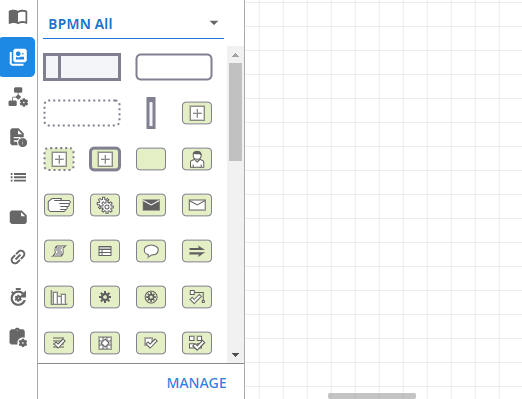
-
Find and check the boxes for the ArchiMate libraries you would like to use. Your options are ArchiMate Shapes, ArchiMate Symbols, or ArchiMate All (containing both shapes and symbols)
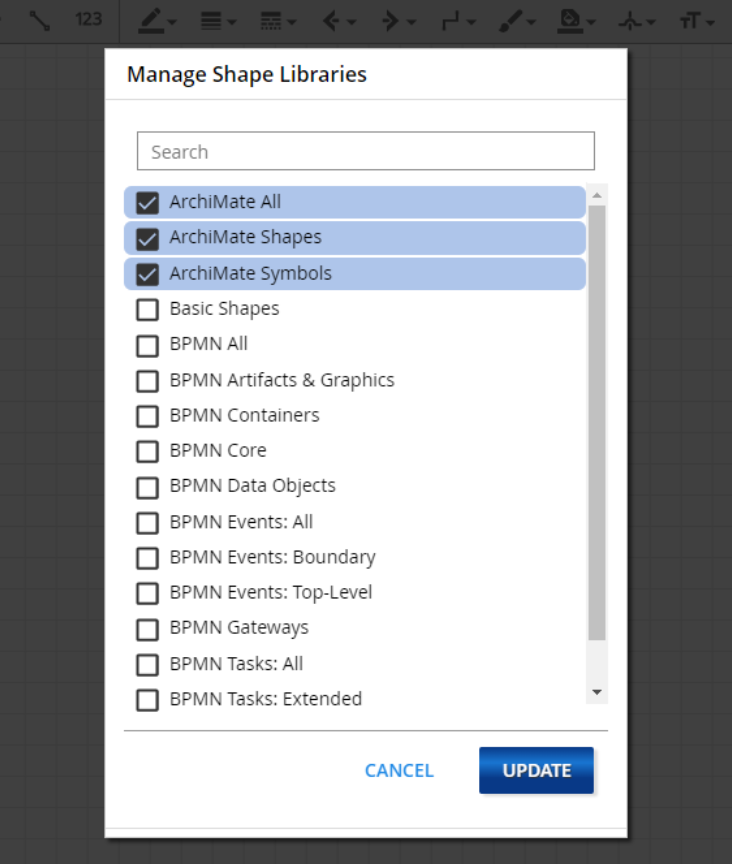
-
Click UPDATE to confirm your selections
-
Access your selections via the menu at the top of the Shape Libraries panel as usual
Create an ArchiMate diagram
How to create a new diagram using the ArchiMate template
-
Check with an administrator to confirm the feature flag is enabled
-
Create a new diagram using your preferred method (New Diagram button, right-click Tree folder, Add Object, etc.)
-
In the resulting dialog, make sure Diagram View is selected
-
Click the Template dropdown menu, then select ArchiMate
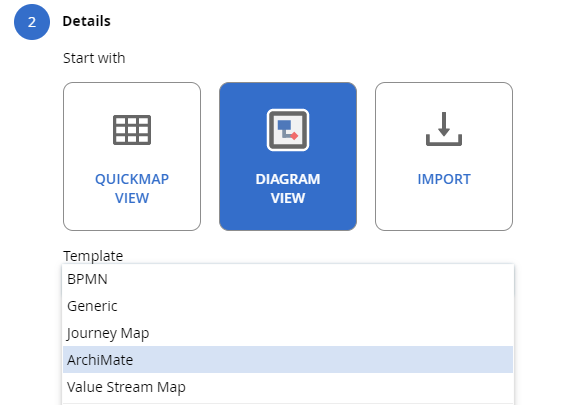
-
Add any other details to your new diagram, then click Finish
-
By default, the resulting diagram canvas provides a handy reference guide for all the ArchiMate shapes, symbols and lines and their meanings
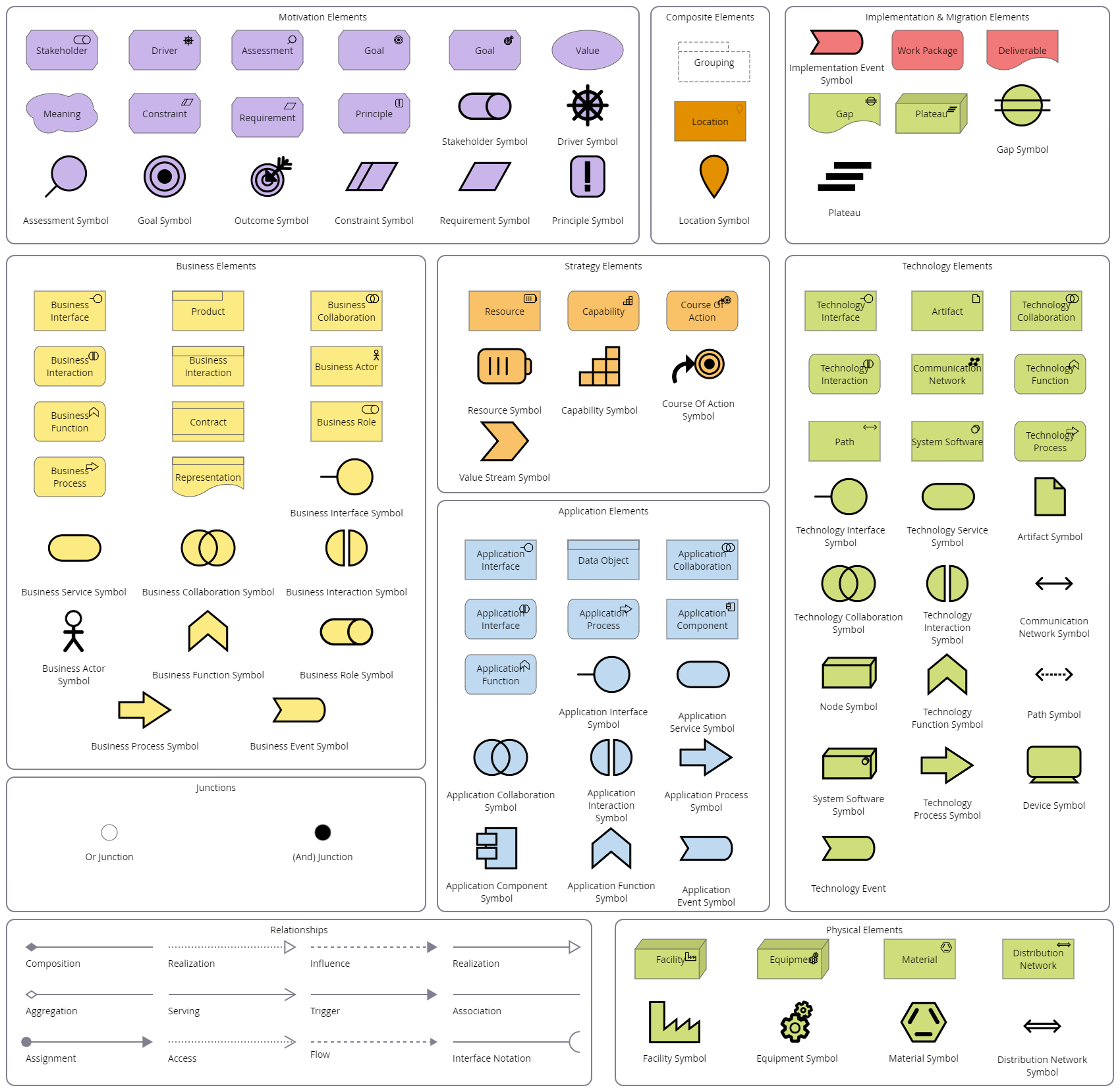
ArchiMate Lines and Arrowheads
How to use the ArchiMate Lines and Arrowheads
-
Check with an administrator to confirm the feature flag is enabled
-
Access a checked out diagram
-
Click the Dashed Lines icon in the top menu, here you will find the usual line styles, plus the new ArchiMate styles
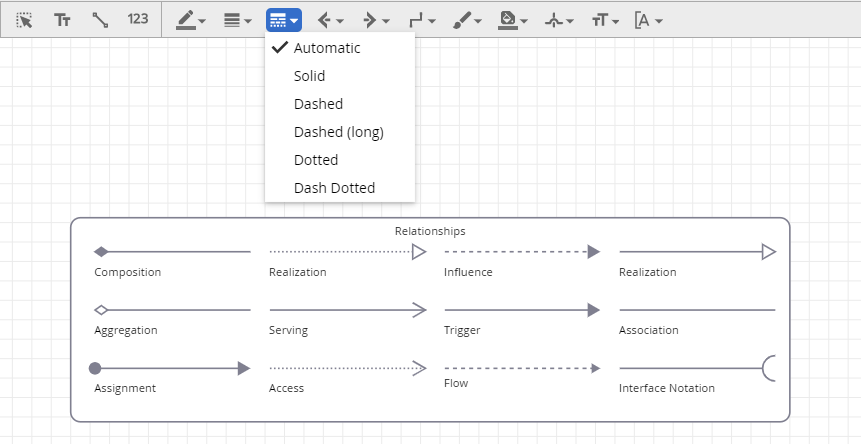
-
To the right of the Dashed Lines icon, you will find the start and end arrowheads menus that include the new ArchiMate arrowheads
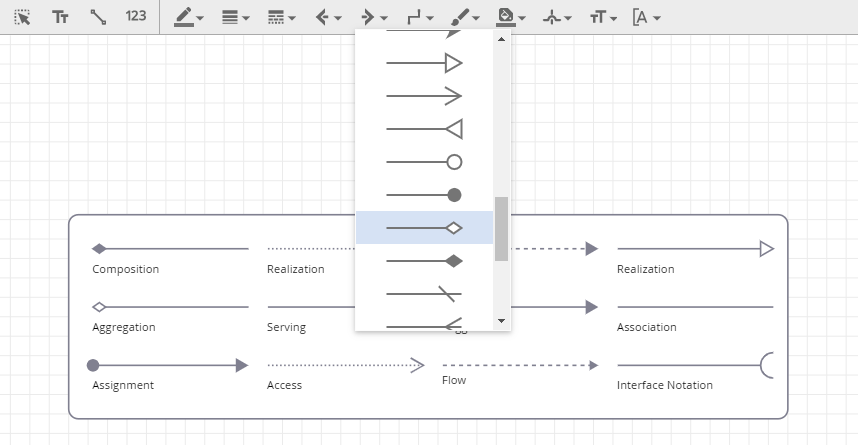
Diagramming - Path Stepper
Paths are now translatable and the tool now accounts for clicking lines.
Learn more
Paths are now in the Languages Grid. In addition to being able to translate them one at a time, you can now translate paths via the grid. With this, the import and export for diagram translations also supports path names.
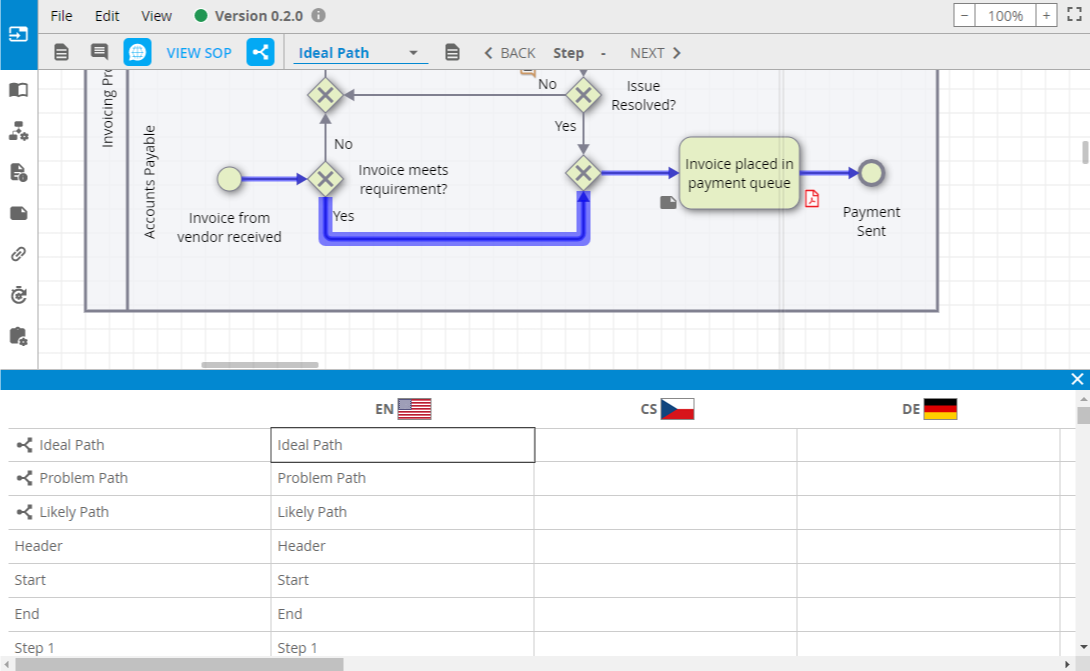
The selection functionality of the Paths tool now accounts for clicking lines as well as shapes. Now, if you click a line in a defined path, the Paths tool will keep your place rather than deselect.
Narrative Reports - Extended Narrative Capabilities
Narrative Reports can now be viewed from diagrams and are accessed from the Narrative panel.
Learn More
Extended Narrative CapabilitiesIntroducing the new Narrative Panel in diagrams.
|
Narrative Reports - Export
Narrative Reports can now be exported as a Word Document or a PDF.
Learn More
Narrative ExportNarrative Reports can be exported for future use.
Note: All Narrative Reports can be exported this way if the Narrative Export Capabilities feature flag is enabled. |
Rich Text Videos
iGrafx now supports embedded videos.
Learn More
Rich Text VideosInclude embedded videos for a more immersive user experience.
To access Rich Text Video Configuration:
|