Linking Diagram Shapes to non-iGrafx (External) Repository Files
iGrafx also allows you to link diagram shapes to non-iGrafx (External) repository files. For example, a shape may represent an activity that is explained by a Word document detailing the procedure. If a user viewing the diagram wants to read the procedure, they follow a link on the shape to display the document.
Both Client-authored and web-authored diagram shapes can link to external files stored in a repository.
To link a Client-authored diagram shape to an external repository file:
- Open or check out an iGrafx document with a Client (e.g. iGrafx FlowCharter)
- Select any shape or text element in a diagram that can have a link
- Choose the Insert menu (Standard toolbar) and then choose Link
- In the left frame, choose Repository Link
- Using the Repository Tree, navigate to the location of the applicable Web Address object and select it
- Click OK
- Add or check-in the document to the repository
Some additional link options are available for specifying the link behavior when a Client diagram is viewed by a Client tool. These options do not modify the link behavior when the diagram is viewed in the repository via browser.
After Step 5 above:
- Specify a Description. This sets the menu name for the link when a shape is right-clicked
- Select a K****ey Modifier by pressing Shift, Ctrl, or Alt key. For example, if Shift is entered, then a Client user can hold the Shift key and double-click the shape to open the linked document.
To link a Web-authored diagram shape to an external repository file:
Link a web diagram shape to a repository file:
-
Right-click a web diagram shape and choose Add Link to Shape
-
In the Link to setting, leave Repository Object selected
-
Click CONTINUE
-
In the Path field, type the (partial) name of any Word document stored in your repository. For example, if the repository contained a document named "Perform Task Two Instructions.docx", then typing "Perform" in the Path field will display the document name. Alternatively, you can click the Search icon to find the desired document.

-
Click a document
-
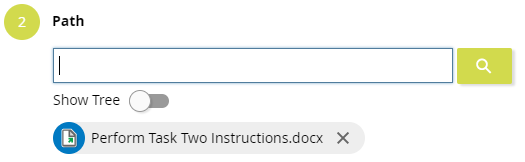
For example, if "Perform Task Two Instructions.docx" is clicked then the Path appears this way:
-
Click **FINISH **The shape is displayed with a Link icon

To link web-authored diagram text to an external repository file:
-
With a browser, in the repository tree, select a web diagram
-
If the diagram is not displayed in the right frame then click the DIAGRAM tab
-
If the diagram is not checked out, click File and then click Check Out
-
Click a shape or text element once and then click it again
-
Select one or more text characters as show below:
Original Shape After Selecting Text After CREATE LINK
(step 9 below)image2017-11-22_10-58-41.png image2017-11-22_10-59-4.png image2017-11-22_11-5-43.png -
Click the Link icon

-
Click Repository Object and click CHOOSE
-
In the Choose Object dialog, you can:
- Type the name of an existing external file in the Search field and select it when found
- Click the Search button
 and select an external file
 - Click the Show Tree switch, expand folders, and select an external file object
-
Click CREATE LINK
-
Click outside the selected shape
To navigate a shape or text link with a browser
- For a Client-authored diagram shape linked to an external file, click the linked shape
- For a web-authored diagram shape linked to an external file:
- Click the icon adjacent to the shape
- Click a document name (there can be more than one document link on a shape)
- Click VIEW FILE
- To close the viewing pane, click outside it
- For a web-authored diagram text linked to an external file, click the linked shape text
See Also