Chapter 2.1: Shape Numbering
Showing/Hiding Shape Numbers
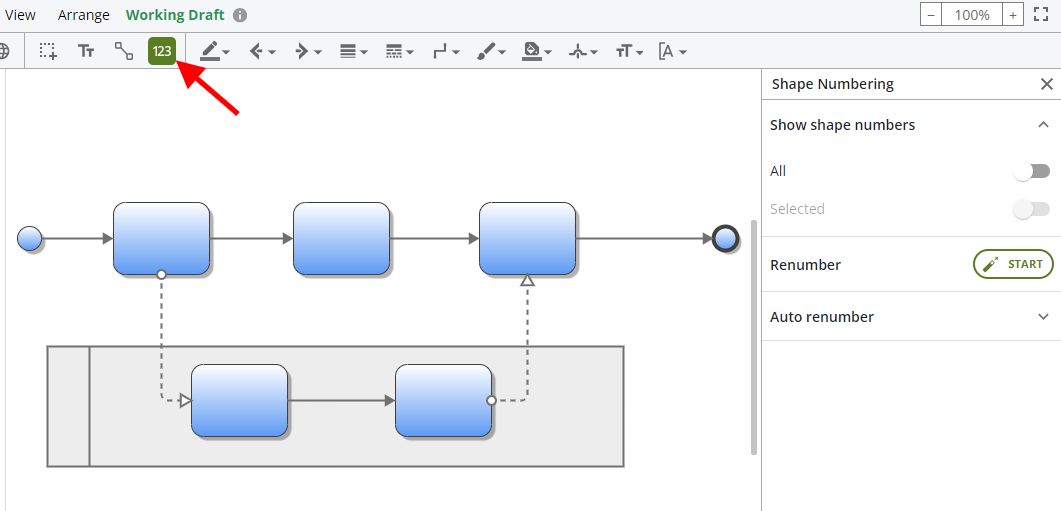
- Click the icon in the top toolbar
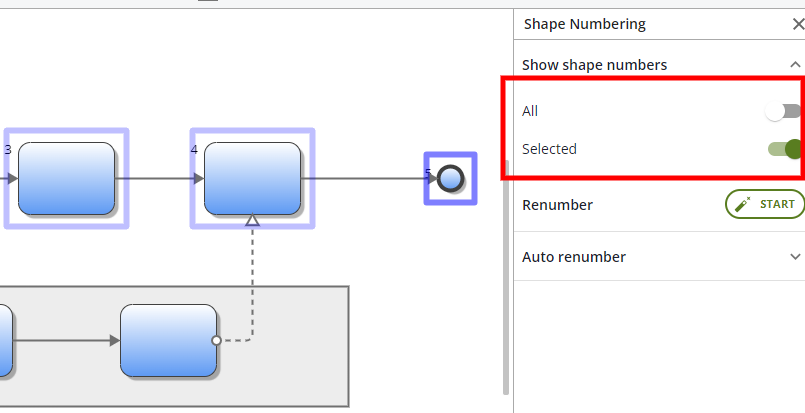
- You can choose to toggle the visibility of any shape numbers for All shapes or for currently Selected shapes only
Renumbering Shapes
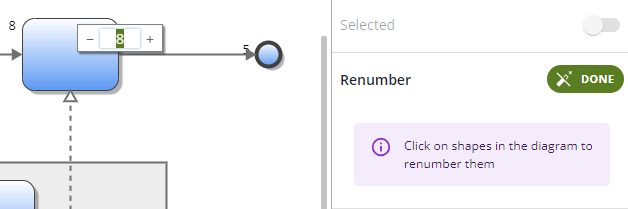
- Click the Start button to enter Renumbering mode
- While in this mode, your cursor's appearance will change to a magic wand as you hover over the diagram. Clicking on any shape will open an input that allows you to change its number
- Click Done button in the Shape Numbering panel to exit this mode

Automatic Renumbering Shapes
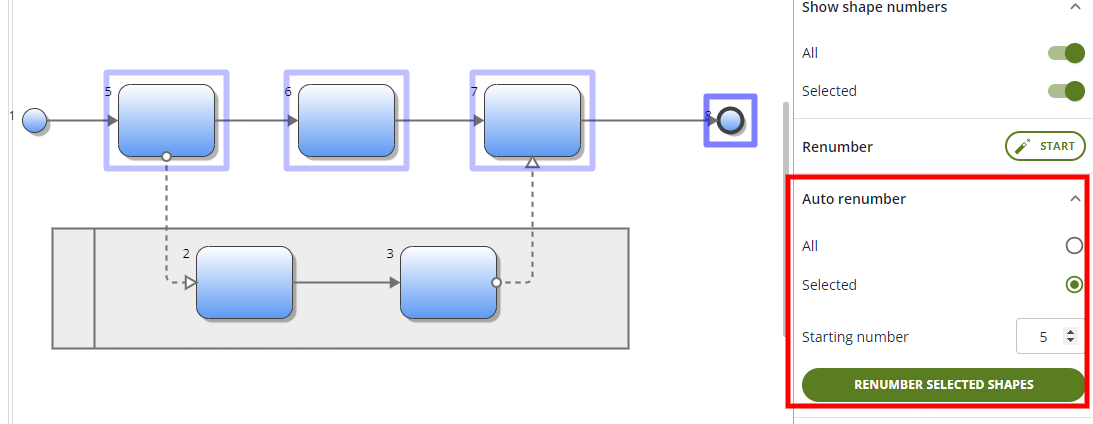
- Click to expand the Auto renumber section of the Shape Numbering panel
- Choose All or Selected shapes and a Starting number to use
- After selecting the desired options, click the Renumber button to automatically renumber your shapes